

Assign to products
Add one or more terms to many products at once. Terms that don’t exist yet are created on the way.
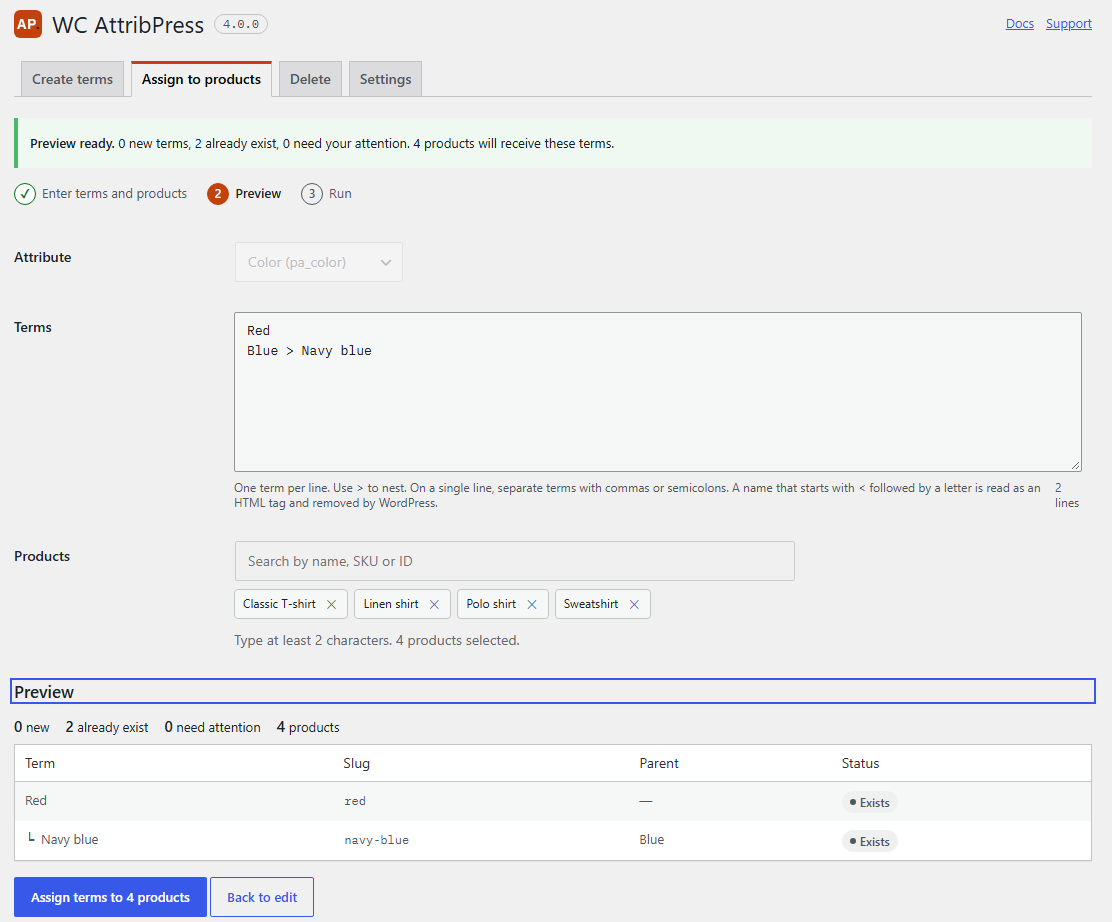
1. Enter terms and products
- Open AttribPress › Assign to products and choose the Attribute.
- In Terms, write the terms to assign, one per line (same rules as Create terms).
- In Products, search by name, SKU or ID. Type at least 2 characters; up to 20 matches are listed. Select a product to add it; repeat the search to add more.
- Click Preview.
Which products can receive terms
- Simple and variable products, published, draft or private.
- Variations receive terms through their parent product: select the variable product.
- Other product types (grouped, external…) and products you are not allowed to edit are skipped, and the preview tells you why.
Limits
- Up to 5,000 products per assignment.
- Up to 1,000 terms per assignment. For a longer list, run several assignments.
2. Preview
The preview shows each term with its status, and how many products will receive the terms. Nothing is written yet.
| Status | Meaning |
|---|---|
| New | The term doesn’t exist yet: it will be created, then assigned. |
| Exists | The term is found and will be assigned. |
| Needs attention | Several terms have this name. Write the full path instead. |
| Invalid | The line can’t be used (duplicate, empty level, name too long…). |
Terms with the same name
With the Hierarchy, two terms can share a name: “Light” under “Blue” and “Light” under “Green”. When you write a name alone, WC AttribPress looks for it at every level of the attribute:
- If one term with that name sits at the top level, that term is used.
- Otherwise, if exactly one term has that name somewhere below, that term is used, and the preview shows its full path.
- If several terms have that name, the line needs your attention: “2 terms are named Light. Write the full path, e.g. Blue > Light.”
- If no term has that name, a new term is created at the top level.
A path such as Blue > Light always means exactly that term. Only the last term of a path is assigned to the products, not its parents.
3. Run
Click Assign terms to N products. Missing terms are created first, then the products are updated in batches of 25.
What happens to each product
- If the product already has the attribute, the new terms are added to the ones it has. The “Visible on the product page” and “Used for variations” options and the attribute’s position don’t change.
- If it doesn’t have the attribute yet, the attribute is added after the existing ones, visible on the product page and not used for variations.
- If the product already has all the terms, it is not saved again.
Assigning a term to a variable product does not create variations. To use the term in variations, edit the product in WooCommerce®.