

Delete terms
Remove terms in bulk, after a preview, without breaking your variations.
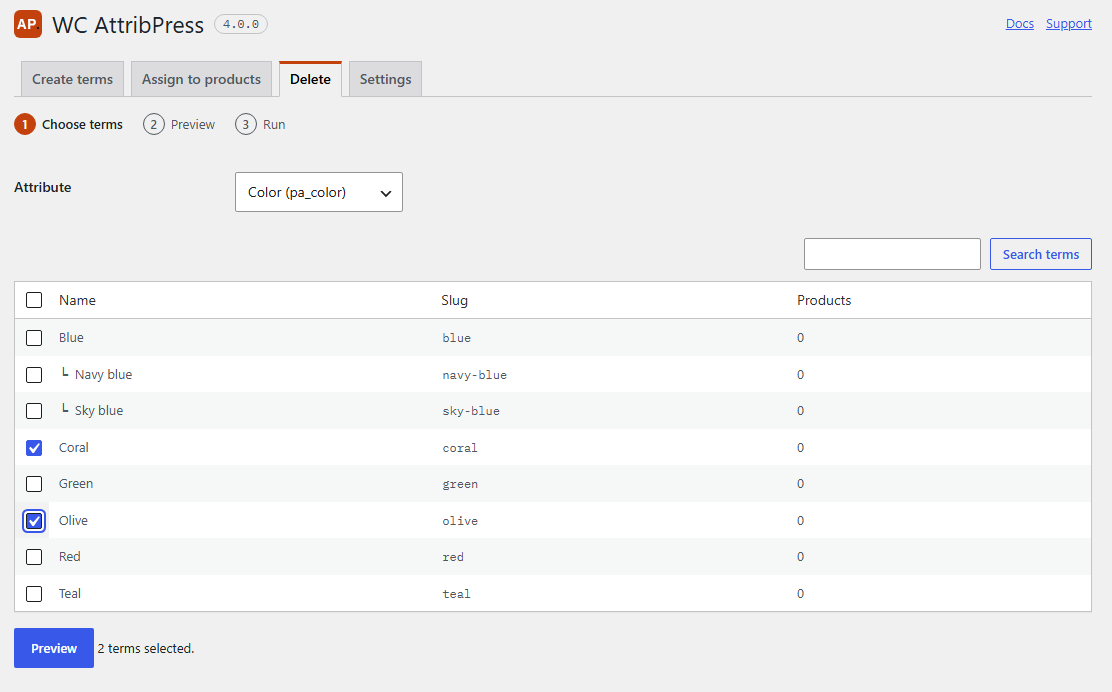
1. Choose terms
- Open AttribPress › Delete and choose the Attribute.
- Use Search terms to filter the list. The Products column shows how many products use each term.
- Check the terms to delete, or Select all terms on this page.
- Click Preview.
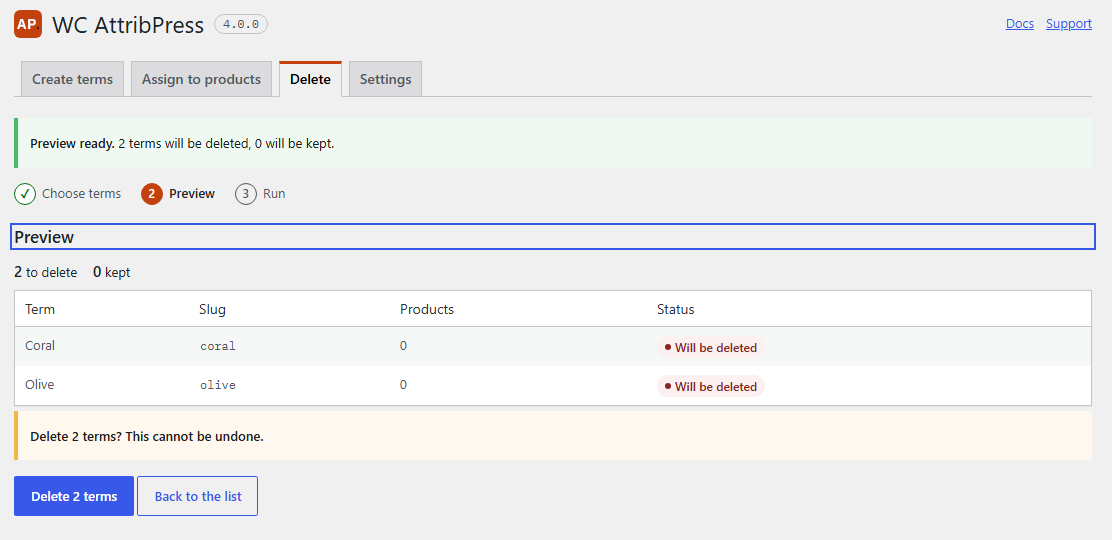
2. Preview
Each term is marked Will be deleted or Will be kept, with the reason when it is kept. Nothing is deleted yet.
A term is kept when:
- it is used by product variations (“Used by variations of 3 products.”): deleting it would break those variations;
- it is used by products you are not allowed to edit;
- it is the default term of the attribute, which WordPress does not delete.
3. Run
Click Delete N terms. Deletion cannot be undone, so make a backup first if you are not sure. The terms are deleted in batches of 25.
What happens around a deleted term
- Its children move up to its parent. Delete “Blue” in
Colors > Blue > Navy blue, and “Navy blue” moves under “Colors”. - Products lose only this term. The other terms of the attribute stay on the product.
- If it was the last term of the attribute on a product, the attribute line is removed from that product, so the product page doesn’t show an empty attribute.
- If a term or a product could not be updated, the result names it and gives the reason.