

License activation
Activate your license to start. It takes a minute and opens every tool of WC AttribPress on the site. Your license is a WC AttribPress Pro license: that is the name shown at checkout, in your e-mails and in your customer account.
Activate your license
- Install and activate the plugin (see Installation).
- Open AttribPress in your WordPress admin and click Activate your license.
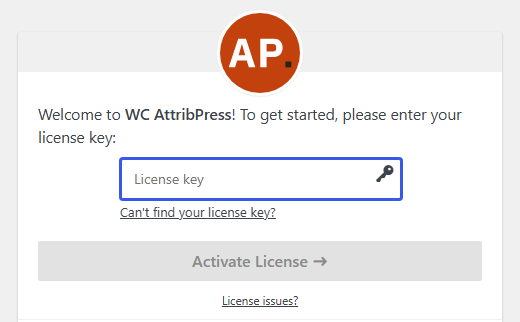
- On the welcome screen, paste the license key from your purchase e-mail in the License key field, then click Activate License.
- The tabs Create terms, Assign to products, Delete and Settings appear, plus License for administrators. You’re ready.
Coming from version 3.x? Version 3.x is deactivated once your license is active. Until then, both versions stay installed and 3.x keeps working. See Upgrade from 3.x.
Your license in the plugin
Administrators see a License tab on the AttribPress screen. It shows your license and its expiry date, and lets you deactivate or renew it.
How many sites?
Each site where the license is active uses one activation: 1, 5 or unlimited, depending on your license. On multisite, activate per site. Activations on local development sites (localhost) don’t count.
Move your license to another site
Deactivate the license on the site you no longer use (from the License tab), then activate it on the new site with the same key.
Expiry and renewal
Your license keeps working. Renew for updates and support. When a license expires, every tool stays available; you stop receiving new versions and support, and a notice on the AttribPress screen reminds you to renew.

Licenses renew automatically each year unless you cancel the renewal.
Lost your key?
Look for the purchase e-mail from Freemius, or sign in to your Freemius customer account. If you still can’t find it, write to support@wcattribpress.com from the e-mail address used for the purchase.